

Four things shipped in November. Pick one below and follow the steps, or jump straight into the dashboard links at the bottom.
Fan Tags
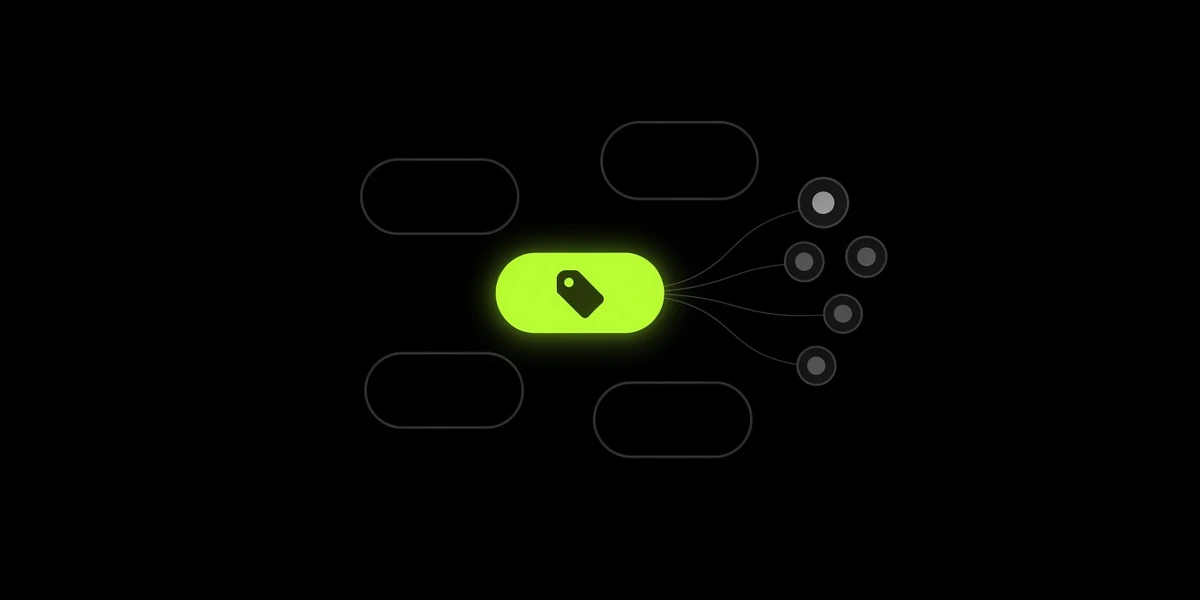
Tag fans (VIP, last show, presale, or create anything you'd like) and message or newsletter only that group.
How To Try It
Step 1. In the dashboard, open Audience, then Fans.
Step 2. Press the plus button beside your labels. A window titled Create Tag opens. Type a name. The box shows examples such as VIP or presale. Choose Create.
Step 3. On a fan's row, choose Edit Tags and add that label. You can also add it while you have fans selected in the table.
Step 4. Select the label, open its menu, and choose Message Tagged Fans. OnPitch opens a new message already aimed at those fans.
Step 5. When you send a newsletter, you can pick the same label. Fans who have any label you pick are included.
A Couple Of Questions
Can one fan have more than one label?
Yes. A fan can carry several. If you pick more than one while setting up a message or a newsletter, anyone who has at least one of them is included.
What if nobody has that label yet?
Message Tagged Fans stays unavailable until at least one fan has it. Add the label to a fan first.
Publish Newsletters To Your Page
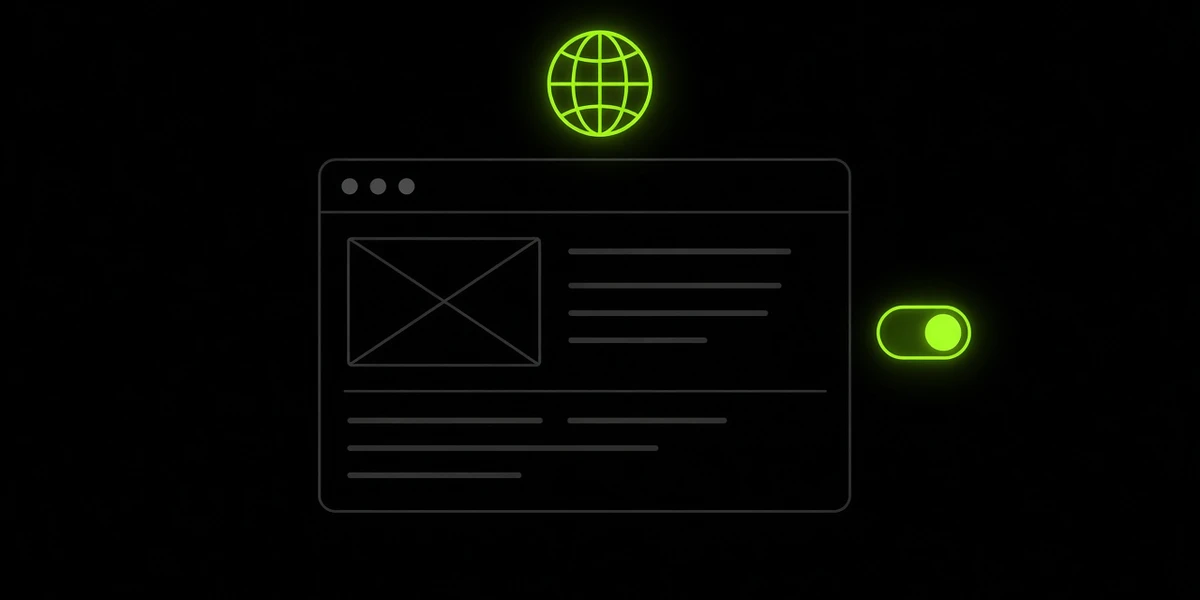
By default a newsletter does not show on your public page. Turn on Publish Newsletter before send (or toggle it later) and fans can read it at a link on your page, something like yourname.onpitch.io/n/... built from the subject.
How To Try It
Step 1. Open Messaging, then Newsletters.
Step 2. On Designs, pick a starting point. On Compose, write the newsletter.
Step 3. On Details, find Publish Newsletter. The note under it says "After this newsletter sends, show it on your public page."
Step 4. Leave the switch off if this one should stay private. Turn it on if fans should be able to read it on your page after it sends.
Step 5. On Review, look at the Page line. It says Hidden or Visible. Hidden means it will not be on your page.
A Couple Of Questions
Can I change my mind after it sends?
Yes. On a sent newsletter, the menu says Publish To Page or Hide From Page. Publish To Page shows it. Hide From Page takes it off your page.
Do I name the link myself?
No. OnPitch builds the short name from the subject line.
2-Way Conversations, one Inbox
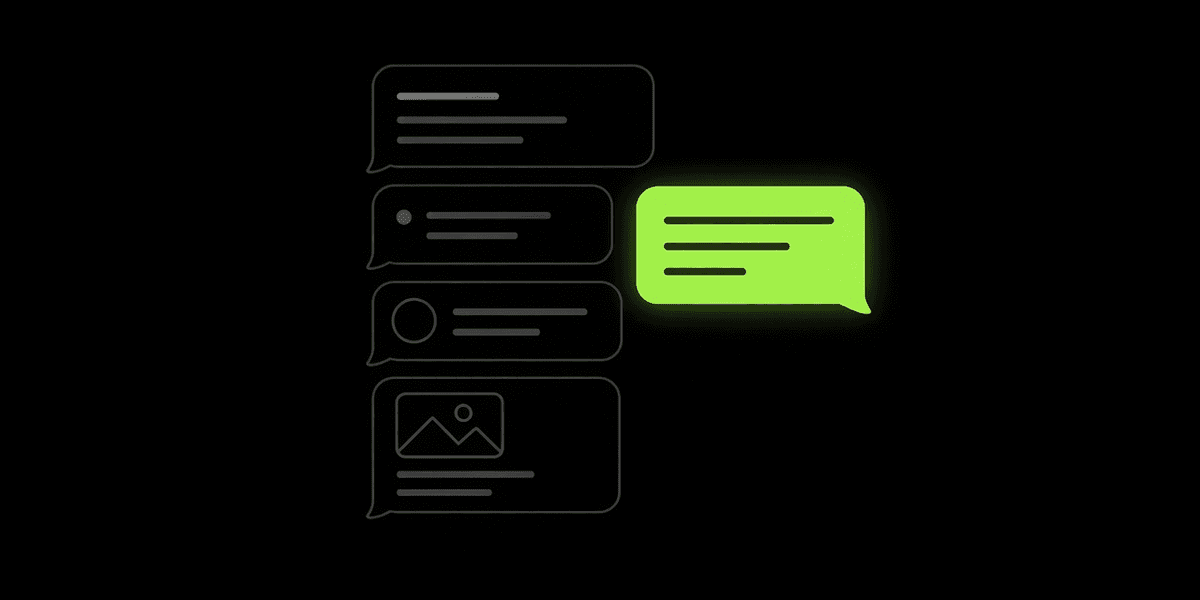
Fans can reach you on SMS or WhatsApp. You reply from Conversations to that one person, with text or a photo. Included on Growth and Enterprise.
How To Try It
Step 1. Open Messaging, then Conversations. The page says "Read and reply to messages from your fans over SMS and WhatsApp."
Step 2. Pick a person from the list. The list is labeled Inbox. You can search, or look only at ones you have not read.
Step 3. Write in the box that says "Write a reply…". To add a photo, use Add image.
Step 4. Choose Send. That note goes to that fan, not to everyone.
A Couple Of Questions
Why can I not see Conversations?
It is included on Growth and Enterprise plans. If you are on another plan, the item is hidden. You can still send a message to your fans the usual way.
Welcome Email
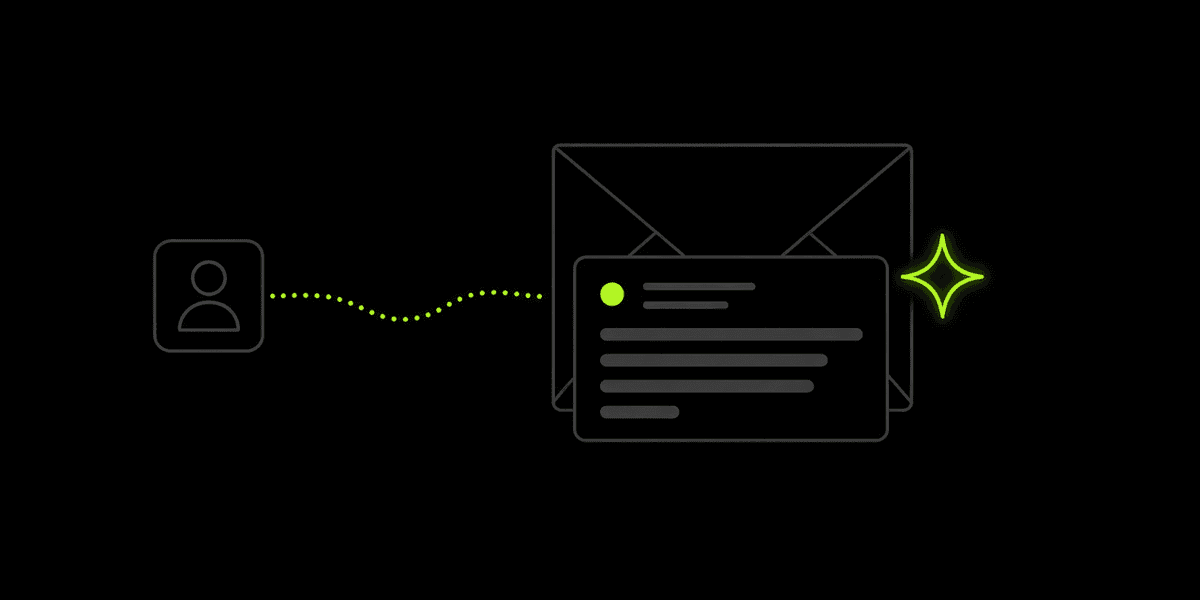
When someone joins your list, they get the welcome email you set under Profile → Email Welcome. Pick a saved design or make a new one. Set it once. Every new signup gets it.
How To Try It
Step 1. Open Messaging, then Designs, and save a design, or use one you already made.
Step 2. Open Profile and find Email Welcome. The note says "Use a saved design as the welcome email."
Step 3. Open the list. Pick a saved design, or choose New Design to make one.
Step 4. Choose Save. The choice is not kept until you save.
In Your Dashboard
Open Fans · Open Newsletters · Open Conversations · Open Your Profile
